Step 1: Choose a Hosting Provider
Select a web hosting provider that offers one-click WordPress installation. Popular options include Bluehost, Hostinger , SiteGround, and HostGator.
Step 2: Sign Up for a Hosting Plan
- Go to the hosting provider’s website.
- Choose a hosting plan that suits your needs and complete the sign-up process.
- Register a domain name if you don’t have one already.
Step 3: Access Your Hosting Control Panel
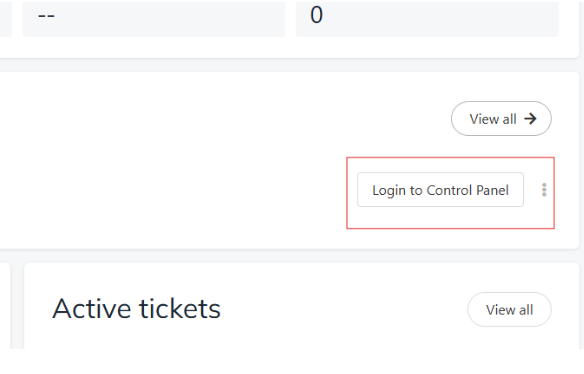
- Log in to your hosting account.
- Navigate to the control panel (often cPanel or a custom dashboard).
Step 4: Locate the One-Click Installer
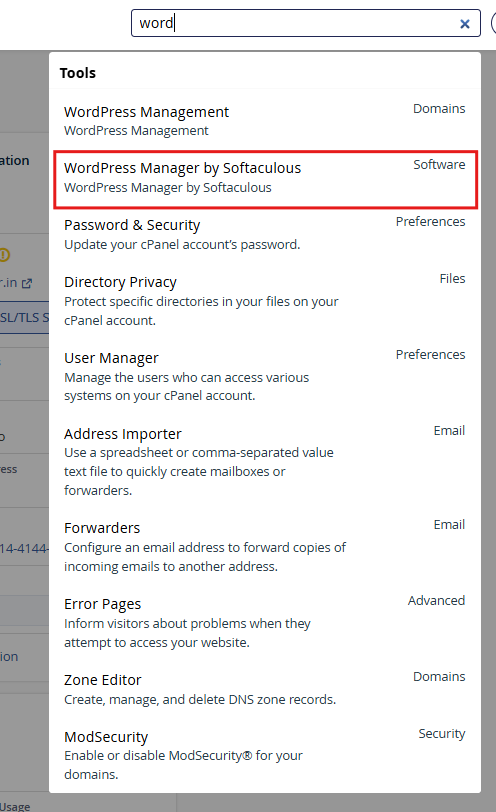
- In the control panel, look for a section labeled Softaculous Apps Installer, WordPress Installer, or something similar.
Step 5: Start the Installation
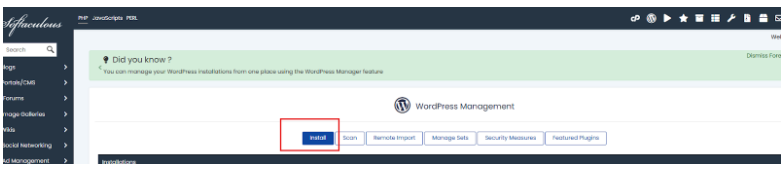
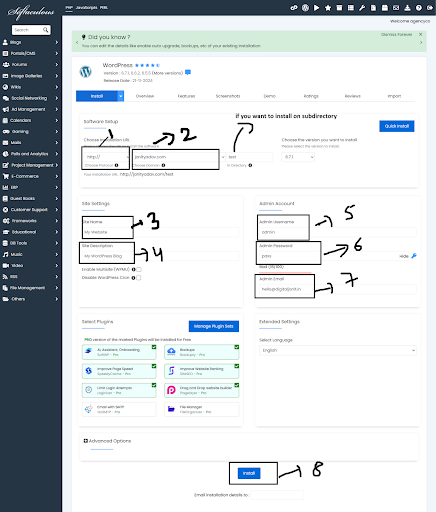
1. Click on the Install Now button.
2. Fill in the required details:
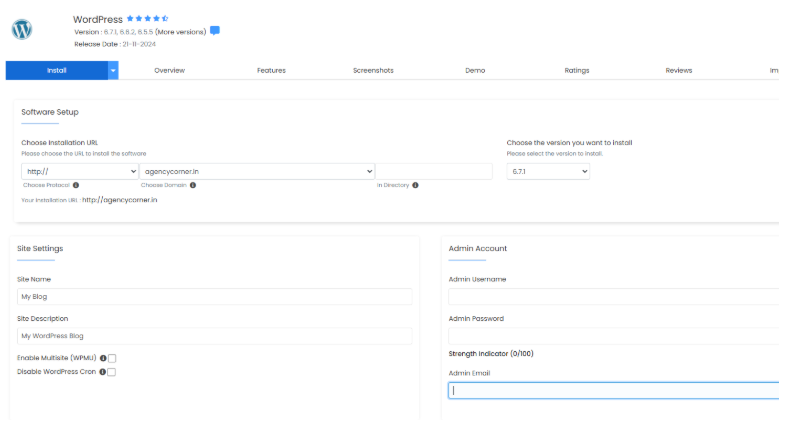
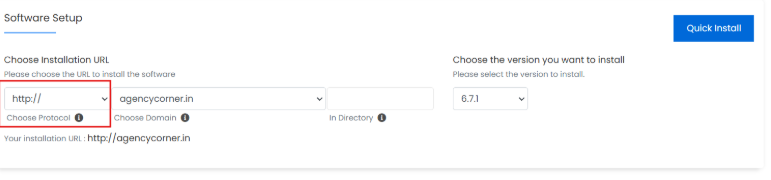
3. Choose Protocol: Select `http://` or `https://` (if you have an SSL certificate).
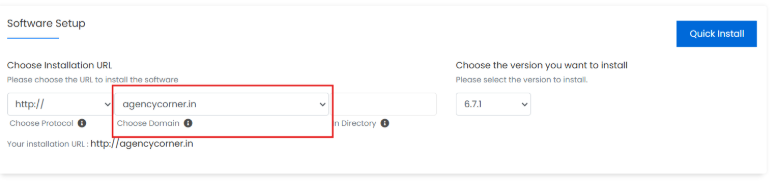
4. Choose Domain: Select the domain where you want to install WordPress.
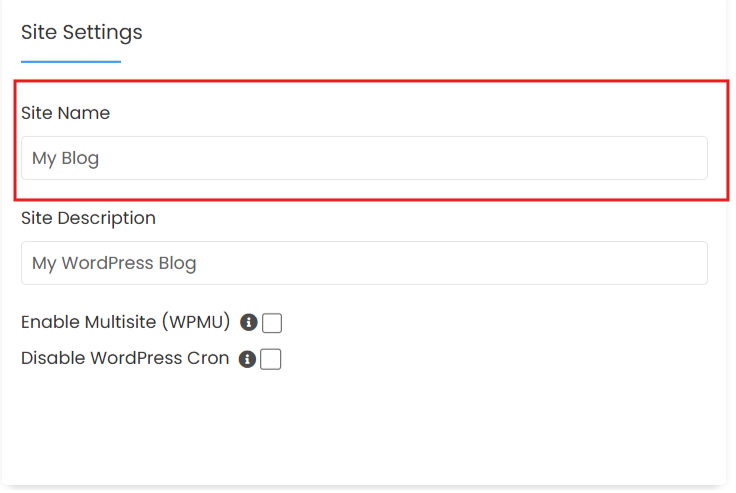
5. Site Name: Enter your website’s name.
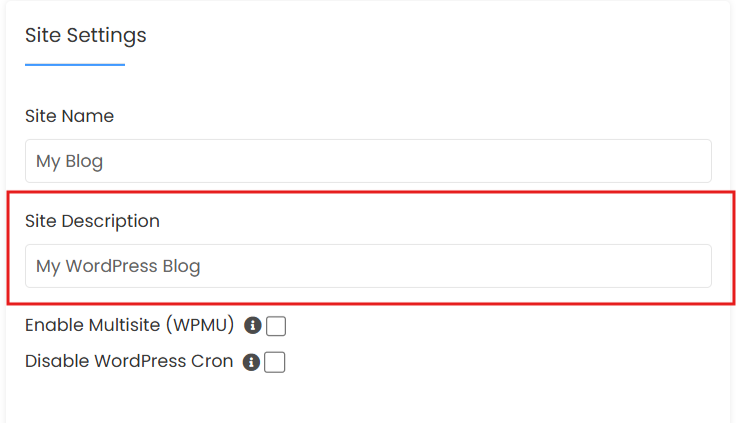
6. Site Description: Enter a brief description of your site.
7. Admin Username: Choose a username for your WordPress admin account.

8. Admin Password: Set a strong password.
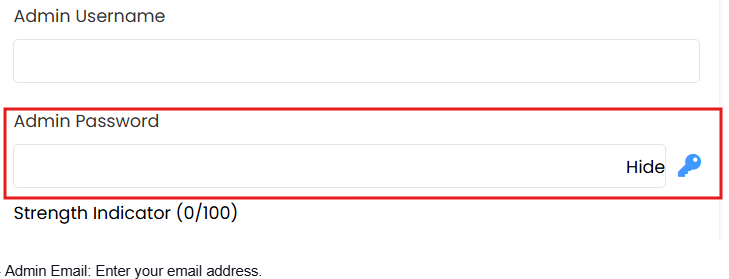
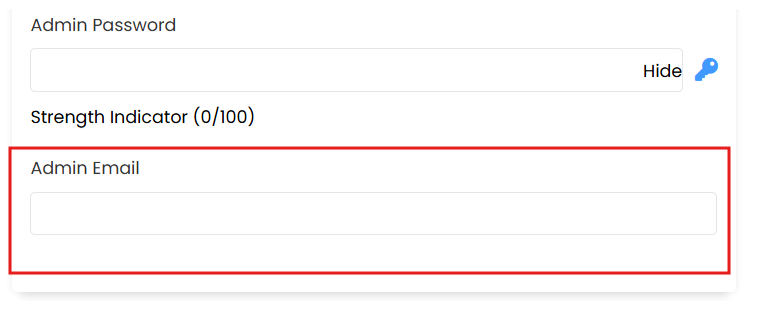
9. Admin Email: Enter your email address.
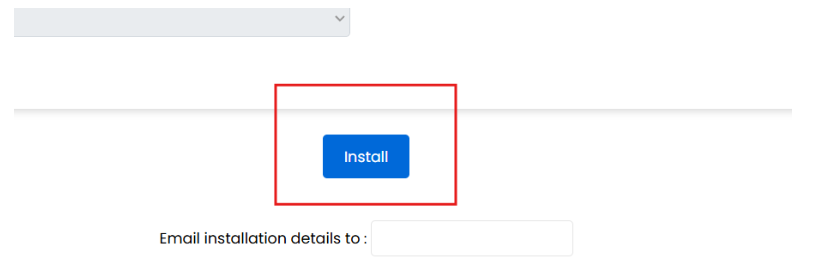
Step 6: Click on Install.
Step 7: Complete the Installation
-
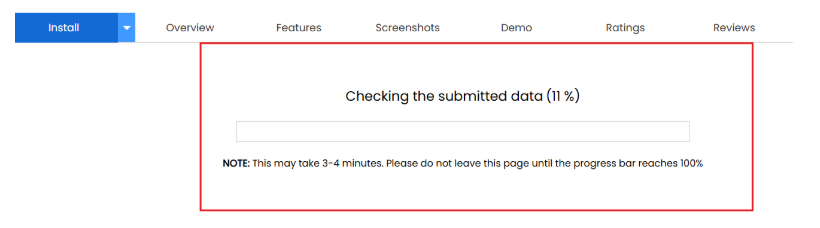
Wait for the installation process to complete. This usually takes a few moments.
2. Wait for the installation process to complete. This usually takes a few moments.
3. Once finished, you will see a success message with your WordPress admin URL (e.g., www.yourdomain.com/wp-admin).

Step 8: Log In to Your WordPress Dashboard
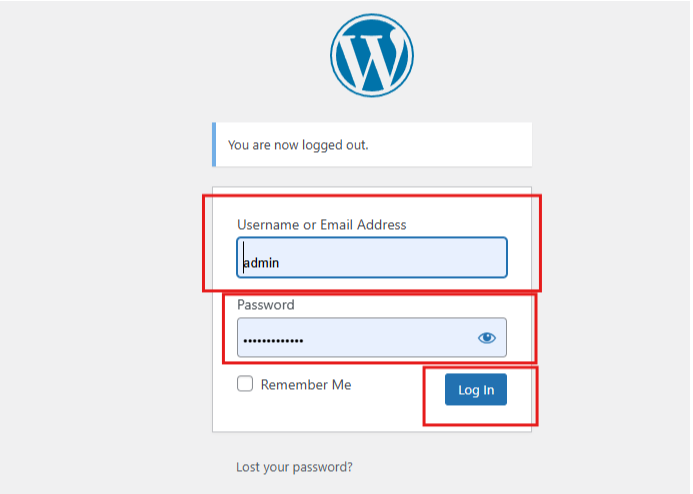
1. Click on the admin URL provided.

2. Enter your admin username and password to log in.
Free downloads
Found this useful? Get our free cheatsheets
SEO cheatsheet, Google Business checklist and a full course guide. Enter your WhatsApp number to download them instantly.