Follow these simple steps to install WordPress on your localhost using XAMPP:
Step 1: Download and Install XAMPP
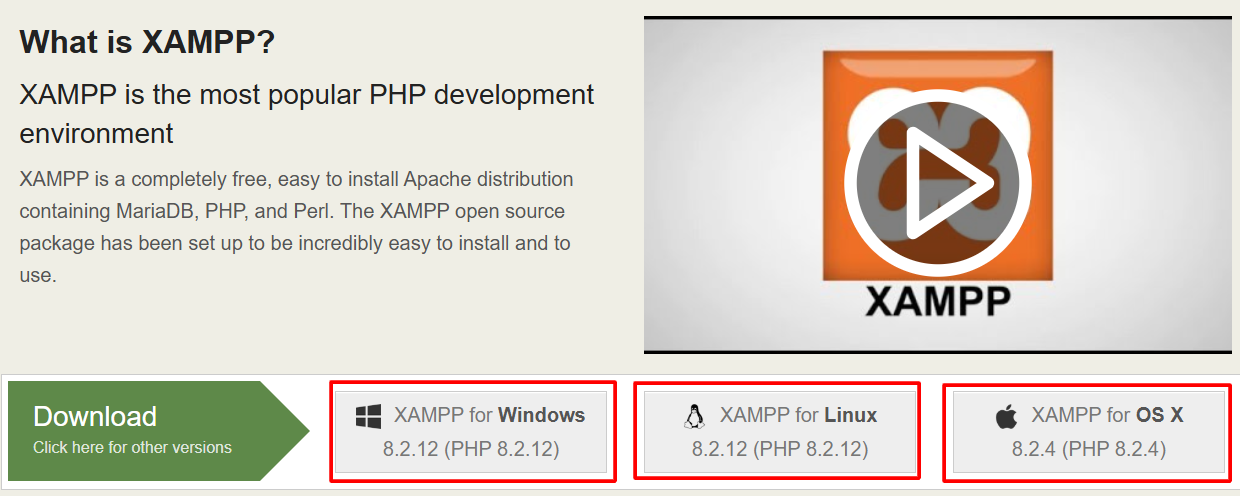
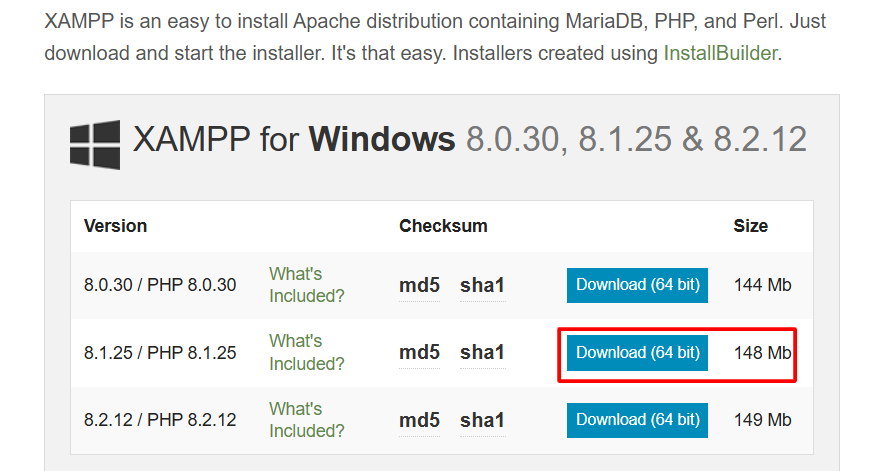
- Download XAMPP from the official website: https://www.apachefriends.org/
- Install XAMPP by following the instructions.
- Open XAMPP Control Panel and start these services:
-
-
- Apache (for the webserver)
- MySQL (for the database)
-
Next Step
Apache (for the webserver) MySQL
Step 2: Download WordPress
- Visit https://wordpress.org/download/ and download the latest WordPress ZIP file.
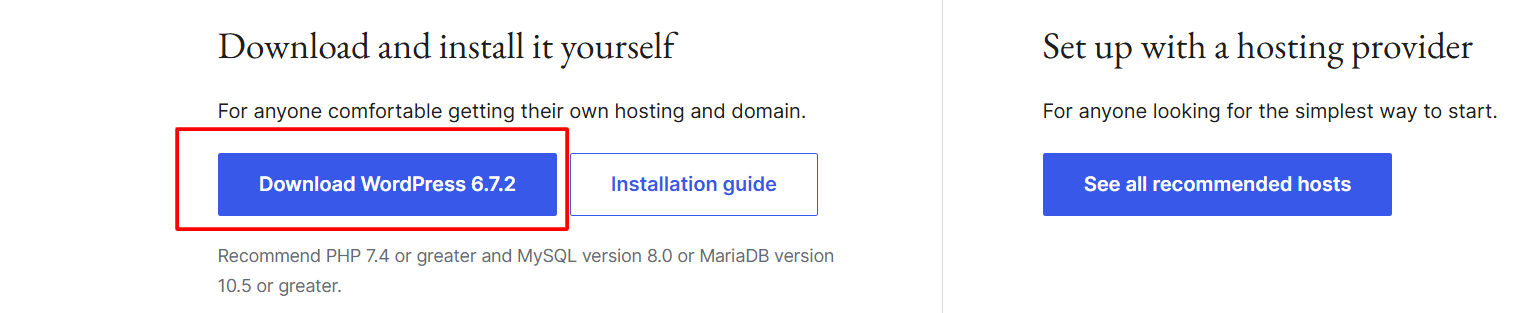
- Extract the ZIP file.

Step 3: Move WordPress to XAMPP
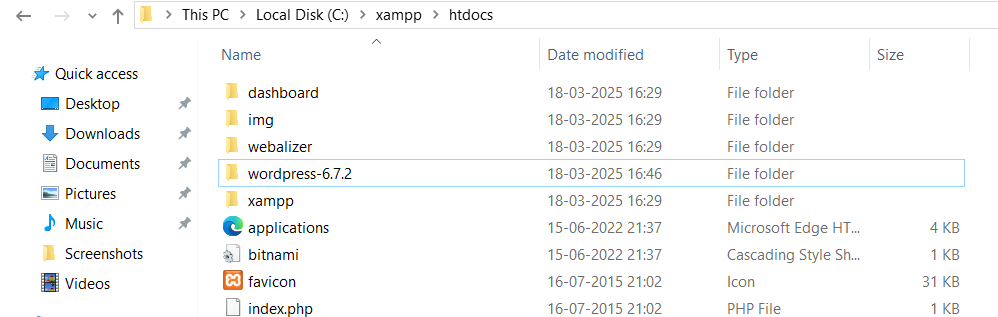
- Go to the XAMPP installation folder (default is C:\xampp).
- Open the htdocs folder (C:\xampp\htdocs).
- Create a new folder (e.g., mywebsite) and paste the extracted WordPress files inside.
Step 4: Create a Database Using phpMyAdmin
- Open your browser and go to http://localhost/phpmyadmin/.
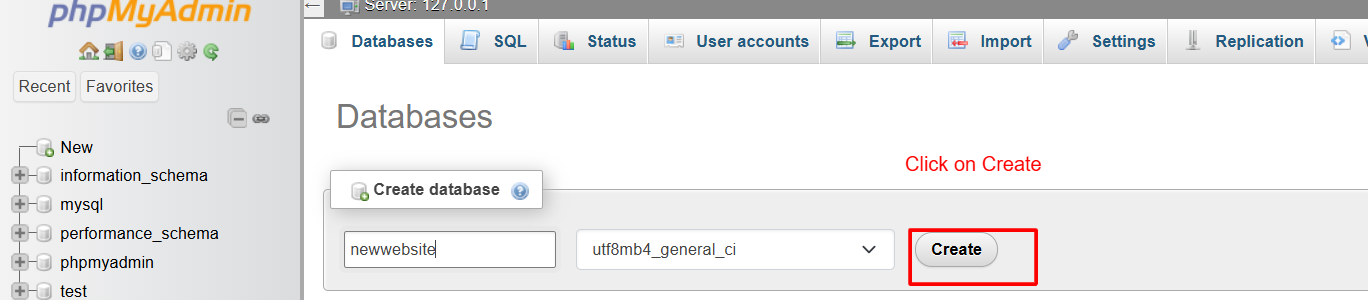
- Click on Databases.
- Enter a database name (e.g., wordpress_db) and click Create.

Next Step
Step 5: Install WordPress
- Open your browser and go to http://localhost/mywebsite.
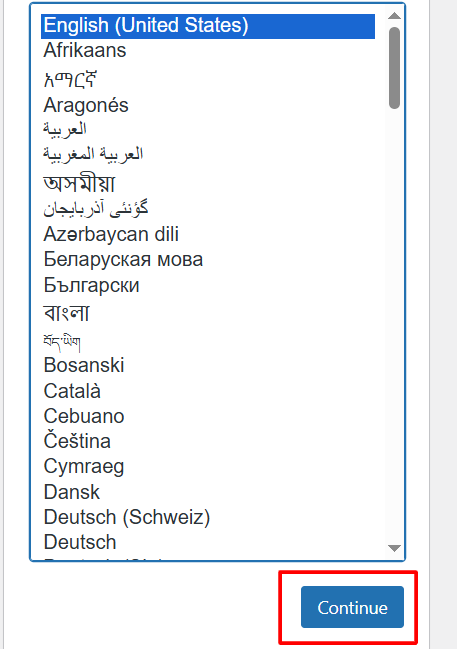
- Select your preferred language and click Continue.
3. Enter your database details:
-
-
- Database Name: wordpress_db
- Username: root (default for XAMPP)
- Password: (leave it empty)
- Database Host: localhost
-
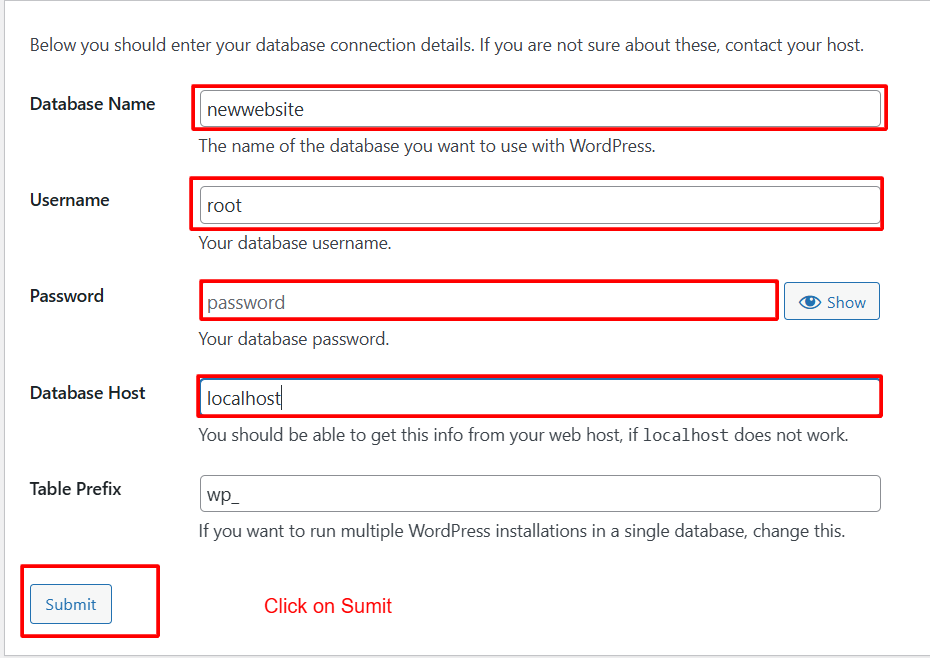
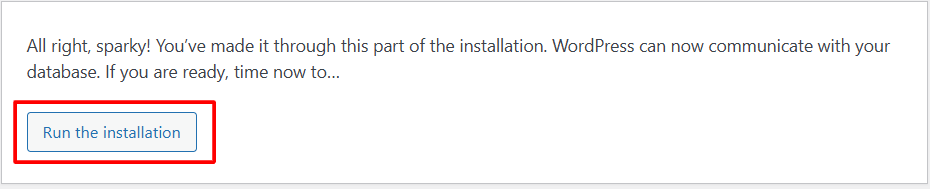
4. Click Submit → Run the Installation.
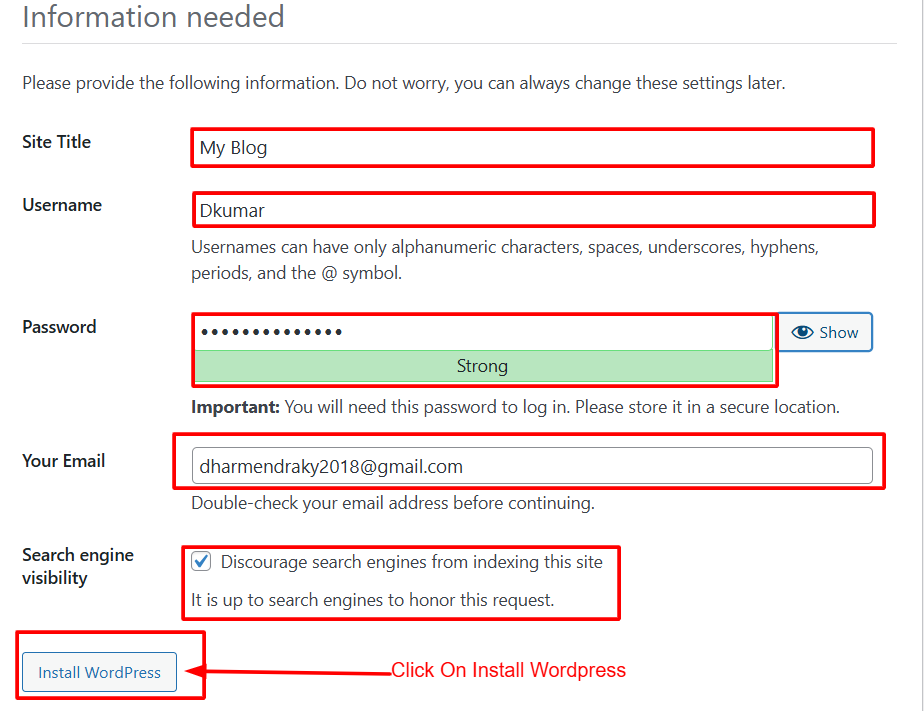
Step 6: Set Up Your Website
- Enter your website details:
-
-
- Site Title
- Username
- Password
- Email Address
-
2. Click Install WordPress.
3. Once done, log in using your credentials at http://localhost/mywebsite/wp-admin.
Congratulations! You’ve successfully installed WordPress on your localhost using XAMPP.
Free downloads
Found this useful? Get our free cheatsheets
SEO cheatsheet, Google Business checklist and a full course guide. Enter your WhatsApp number to download them instantly.